Setup guide for every device
Get streaming in minutes. Pick your device below and follow the step-by-step instructions, or reach out to our team for live assistance.
How to install 4Klive on Fire TV Stick & Android TV
4Klive is the RabbitAI TV app — a premium native player for Fire TV Stick, Fire TV, Android TV, Google TV and Nvidia Shield. Install it with the free Downloader app using code 9234307. Your 7-day free trial starts automatically on first launch — no signup.
Install the free "Downloader" app from your TV store (Fire TV: search "Downloader"; Android / Google TV: Google Play Store), then open it.
Fire TV only: go to Settings → My Fire TV → Developer options → "Install unknown apps", and turn ON Downloader. (On Android / Google TV, Downloader asks for this permission when needed.)
In Downloader, select the address box and type the code 9234307, then press Go.
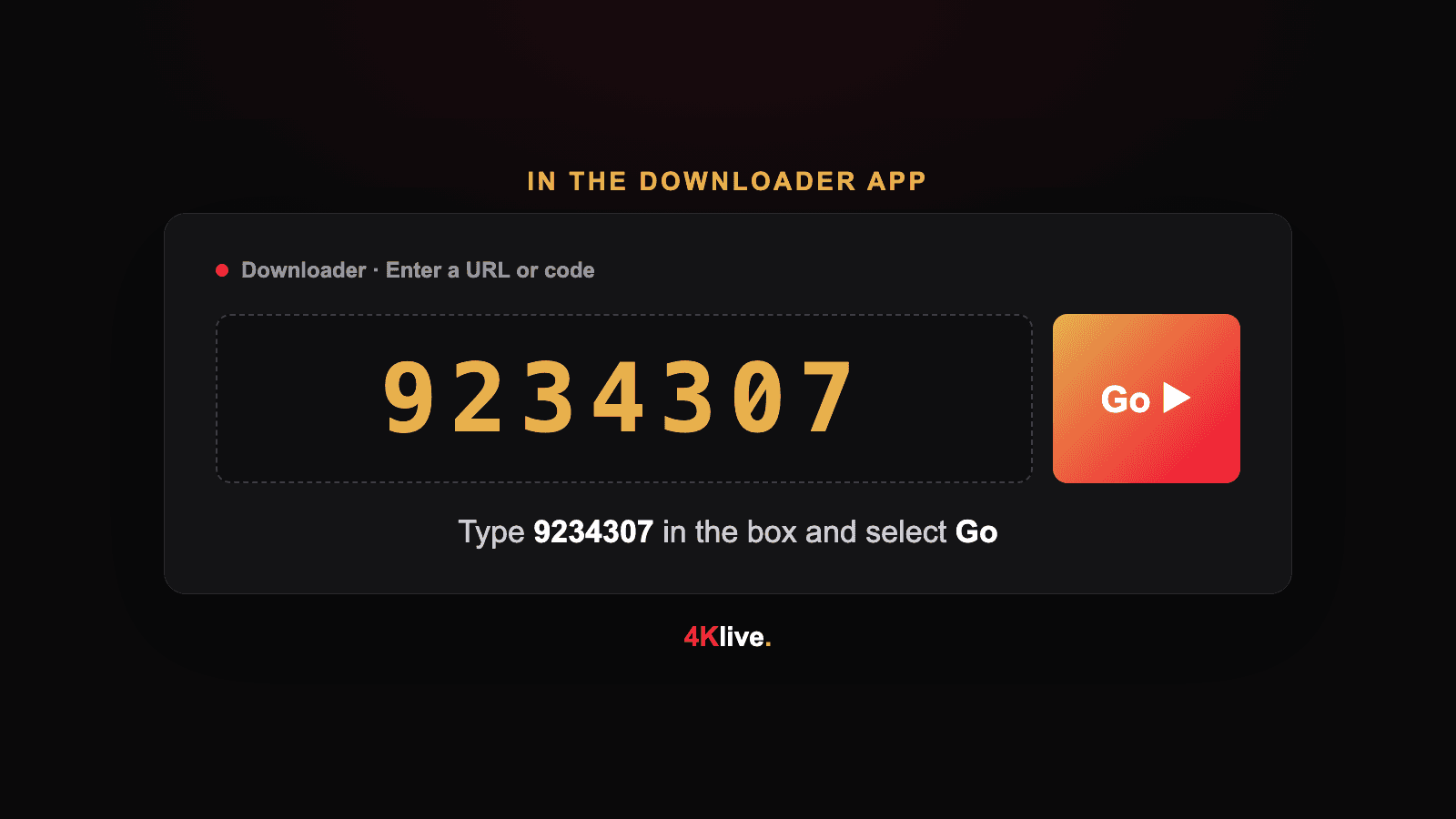
4Klive starts downloading — wait for it to finish, then open the file.
When the installer asks "Do you want to install this application?", select Install.
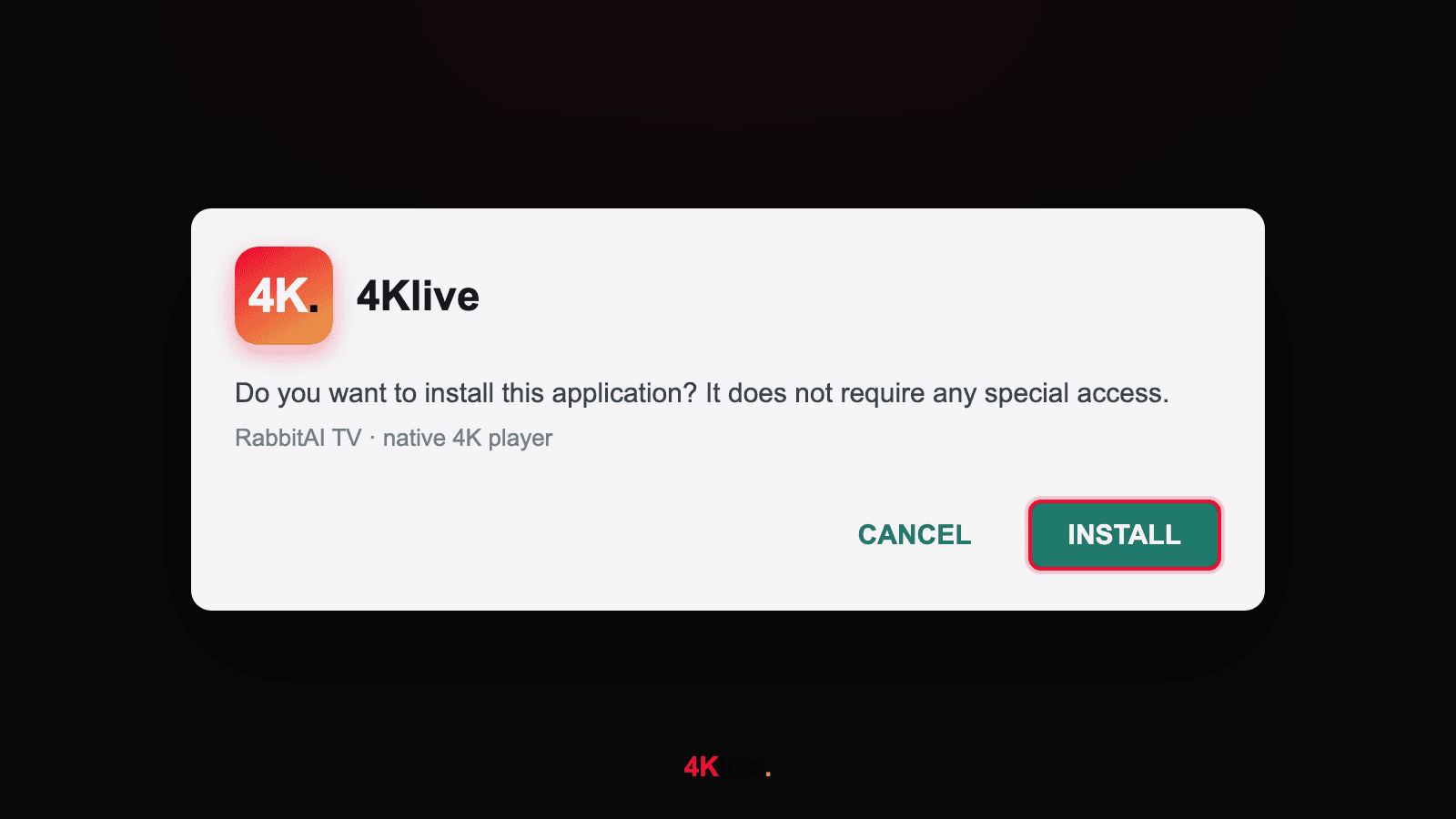
Select "Open" (or later, find 4Klive under "Your Apps & Channels") to launch it.

On first launch, 4Klive shows your Device Key & PIN — and your 7-day free trial has already started, no signup. After it ends you keep the app with a one-time or yearly licence.
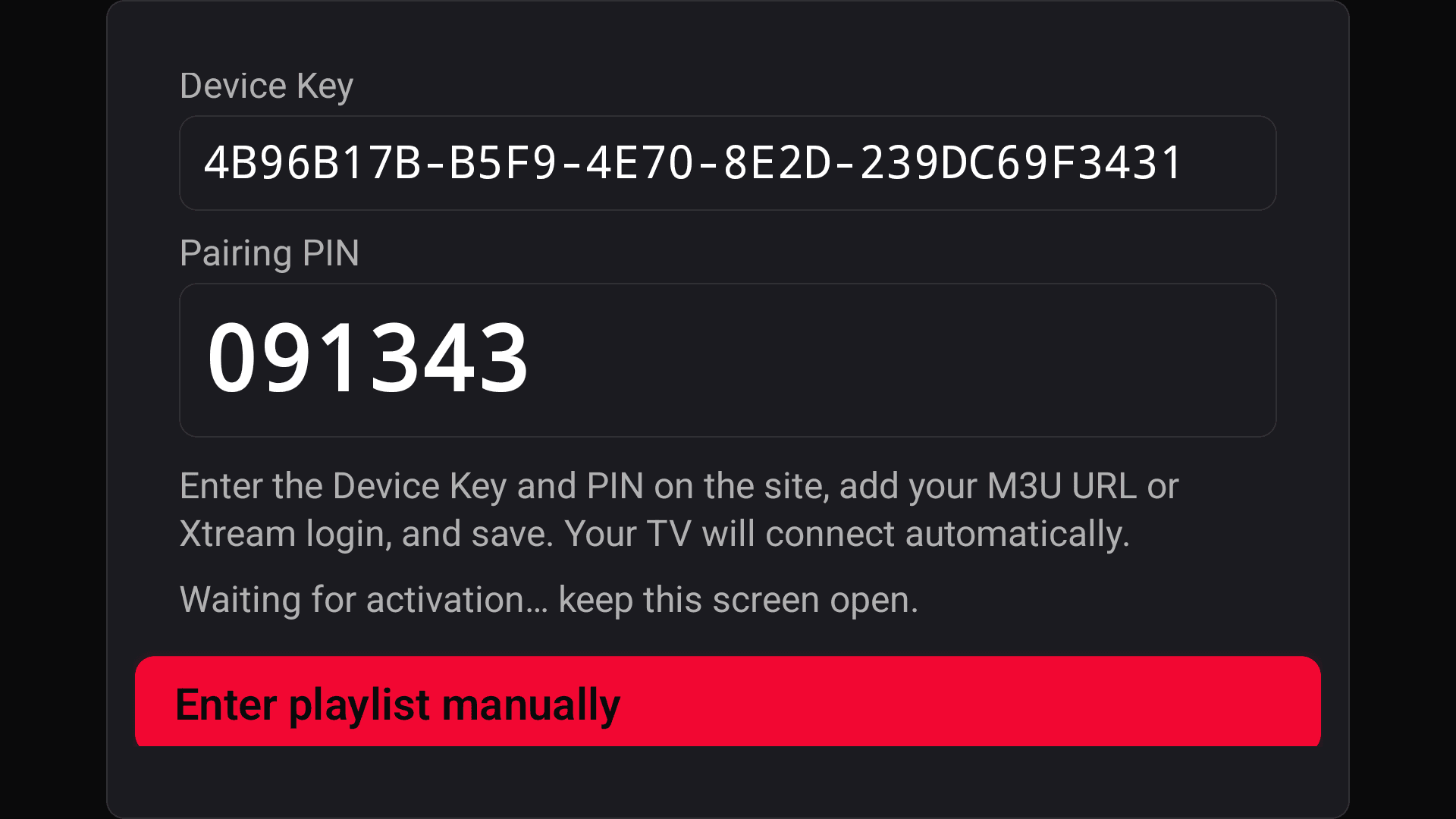
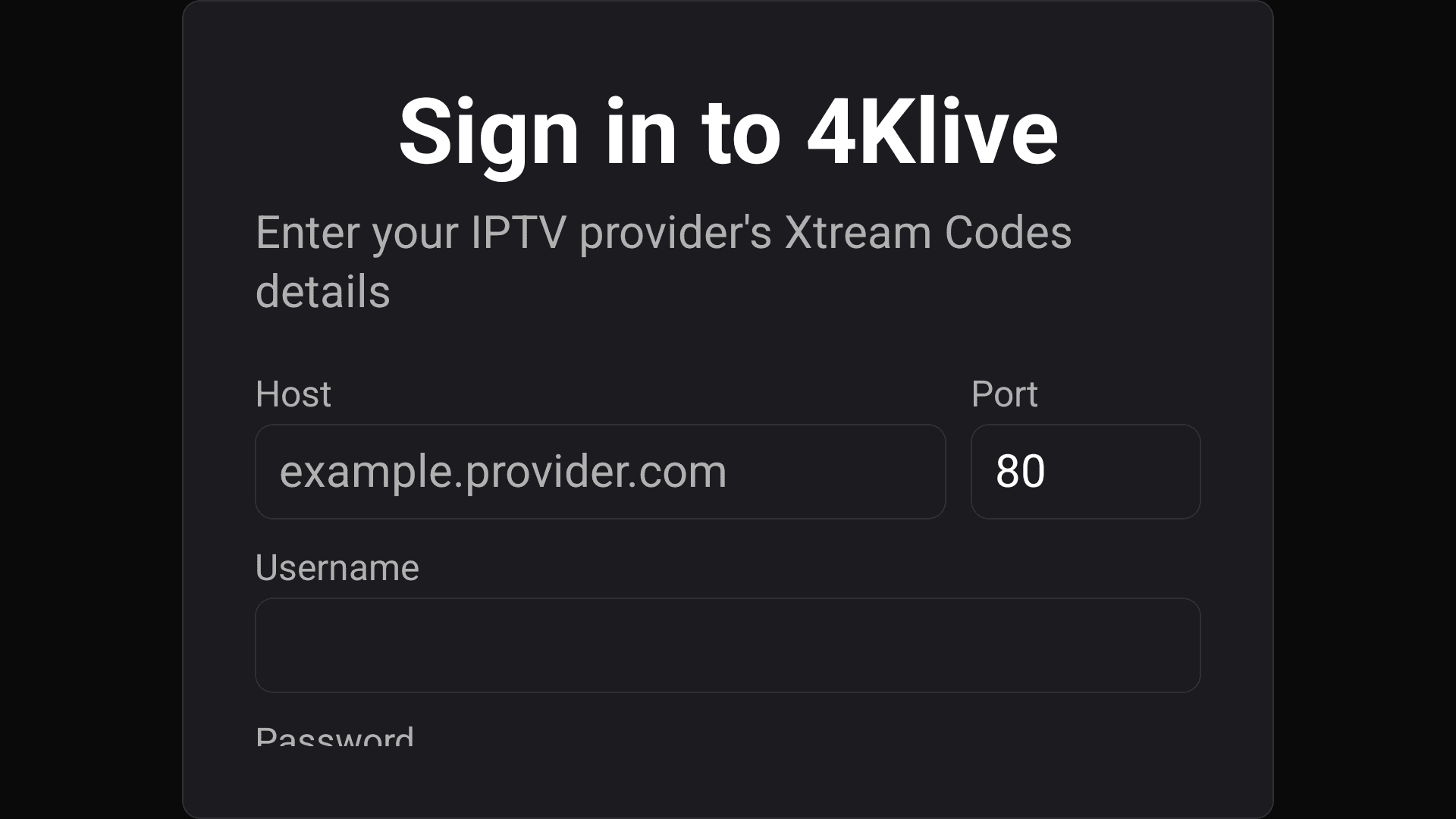
To load your channels, enter that Device Key & PIN on rabbitaitv.com to add your playlist — or select "Enter playlist manually" and type your RabbitAI TV Xtream Codes (host, port, username, password). Your subscription is billed separately.
Need a hand?
If you run into any issues during installation, our team is on standby. Get live support or start your free trial in seconds.