This guide uses 4Klive, the IPTV player developed by the RabbitAI TV team, for the step-by-step part. The explanations about Xtream Codes and M3U apply to any player.
When you sign up with an IPTV provider, you usually receive your access in one of two formats: Xtream Codes details or an M3U link. They often point to the same account, but they don't work the same way in your player. This guide explains the difference, shows how to turn one into the other, and walks you through adding your playlist on an Android TV or Fire TV with 4Klive.
What is Xtream Codes?
Xtream Codes is a login format. Instead of a single link, you get four pieces of information:
- Host: the server address, for example tv.example.com;
- Port: a number such as 80 or 8080;
- Username;
- Password.
With these, the player talks to your provider's server and asks for exactly what it needs:
- the channel categories;
- the TV guide, loaded automatically;
- movies and series in separate sections, with posters and descriptions;
- catch-up on channels that support it;
- your account status, such as expired or too many connections.
That's why players built for TV, like 4Klive and TiviMate, work best with Xtream Codes.
What is an M3U playlist?
An M3U is a plain list of streams. Each entry has a channel name, often a logo and a group, followed by the stream address. You receive it as a link or a file.
M3U is universal, and almost every player can open one. But it's just a list:
- the TV guide must be added separately (an "EPG" or XMLTV link);
- movies and series are mixed into long lists;
- very large playlists can be slow to load.
Xtream Codes vs M3U at a glance
| Feature | Xtream Codes | M3U |
|---|---|---|
| What you get | Host, port, username, password | One link or file |
| TV guide (EPG) | Loaded automatically | Separate EPG link needed |
| Movies and series | Organized sections with details | Mixed into the list |
| Catch-up | Supported when the provider offers it | Rarely |
| Account status | Shown by the player | Not available |
| Works in 4Klive | Yes | Only links generated by an Xtream server |
Bottom line: if your provider offers Xtream Codes, use it.
How to turn an M3U link into Xtream Codes details
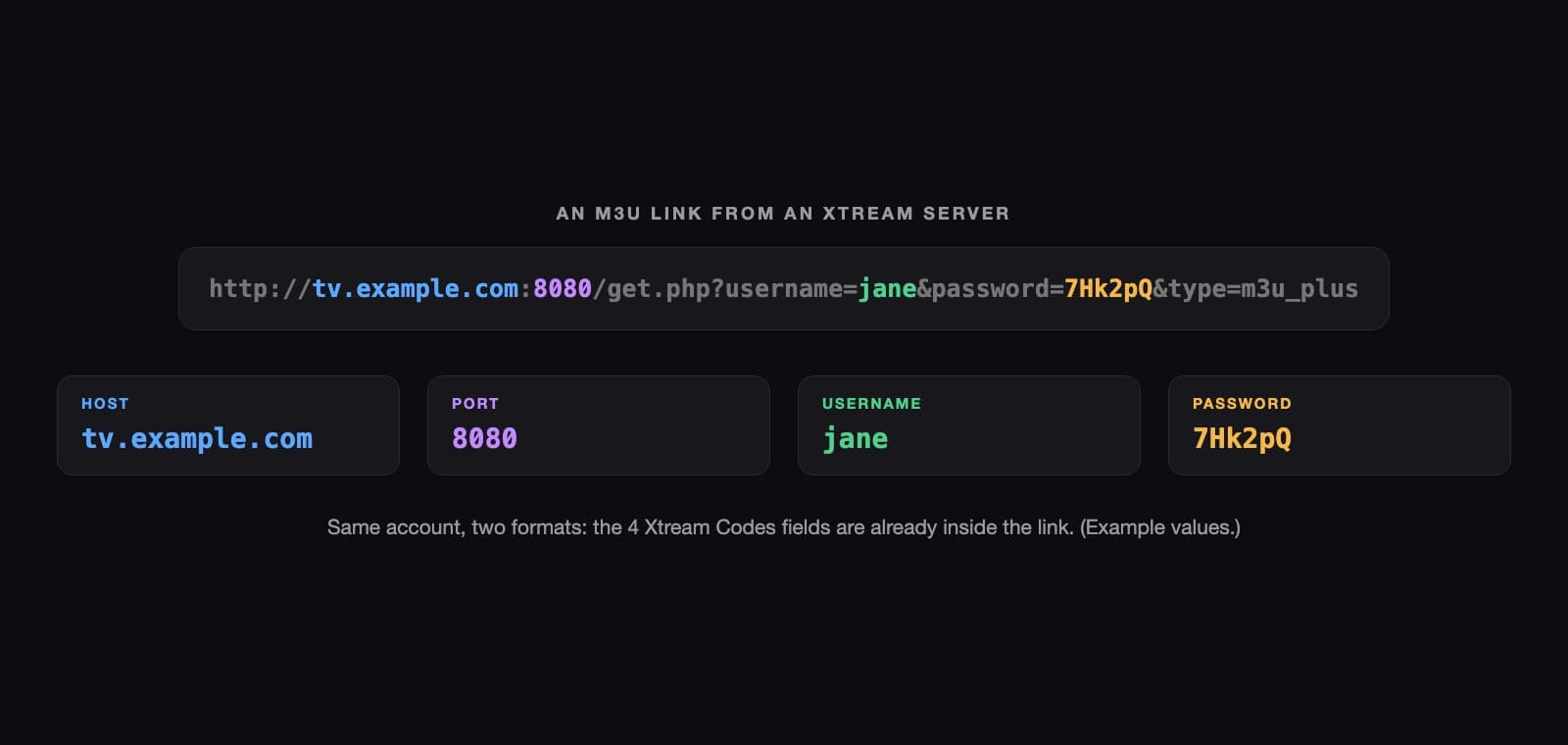
Most providers generate their M3U link from an Xtream server. In that case, your Xtream details are already inside the link. Look for get.php?username= in it.
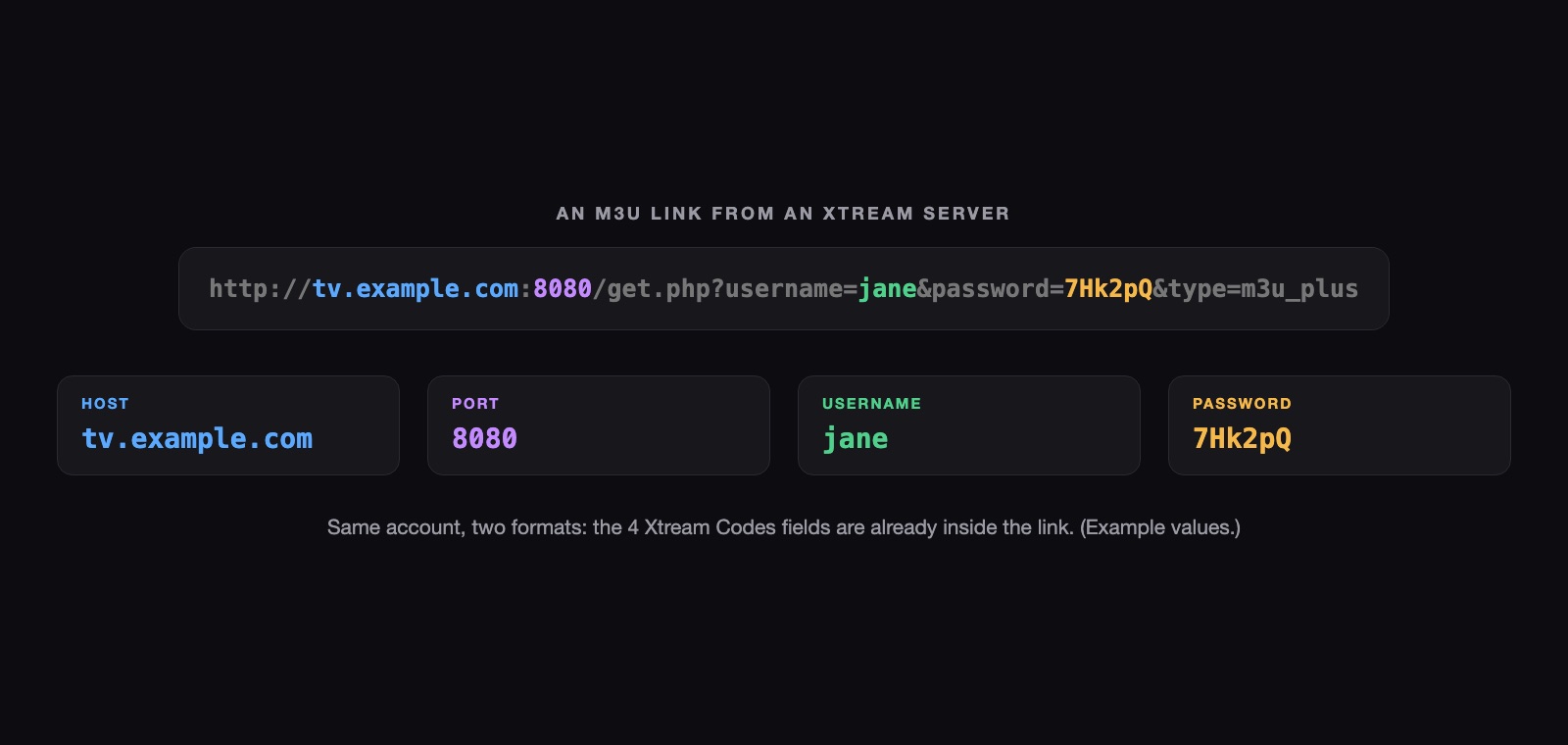
- Host: the part after http:// or https:// and before the colon, for example tv.example.com.
- Port: the number after the colon, for example 8080. If there's no number, it's 80 for links starting with http:// and 443 for https://.
- Username: the value after username=.
- Password: the value after password=, up to the next &.
If the link starts with https://, also tick HTTPS when you add the playlist.
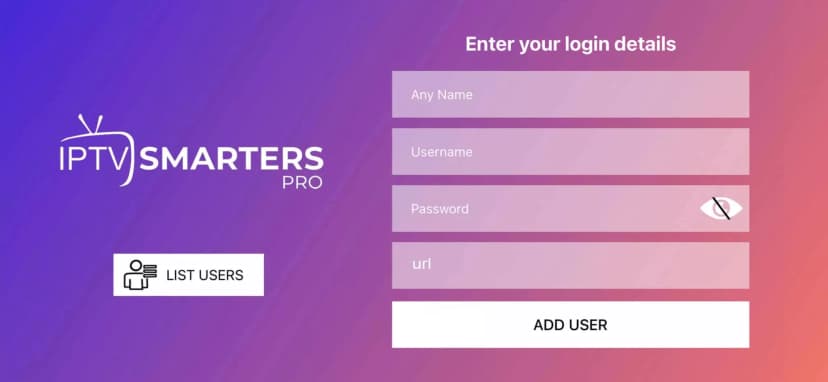
If your link doesn't contain get.php?username= (for example a file ending in .m3u on a file-sharing site), it's a standalone M3U file. You'll need a player that accepts plain M3U, such as IPTV Smarters Pro, UHF or TiviMate.
How to add your playlist in 4Klive (Android TV and Fire TV)
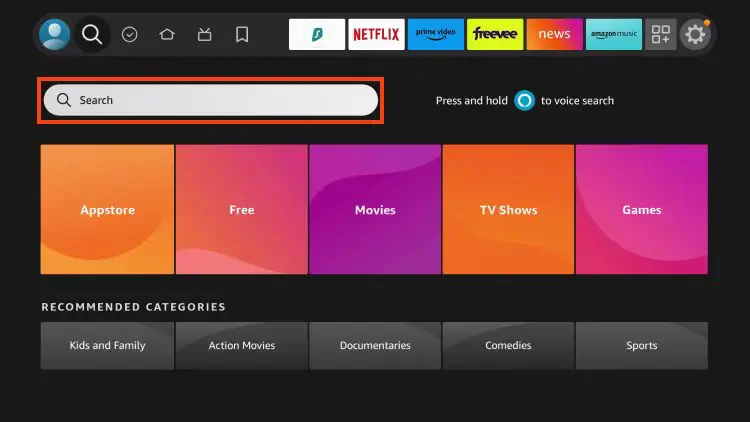
If 4Klive isn't installed yet, follow our Firestick installation guide first. On first launch, the TV shows a TV code and a PIN.
Option 1: from your phone (recommended)
- Scan the QR code on the TV, or open rabbitaitv.com/activate.
- Enter the TV code and PIN, then select Continue.
- Select Add a playlist and give it a name (for example "Home").
- Keep the Xtream Codes tab and fill in Host, Port, Username and Password.
- Tick My provider uses HTTPS only if your link starts with https://.
- Save. Keep 4Klive open: the TV picks up the playlist within a few seconds.
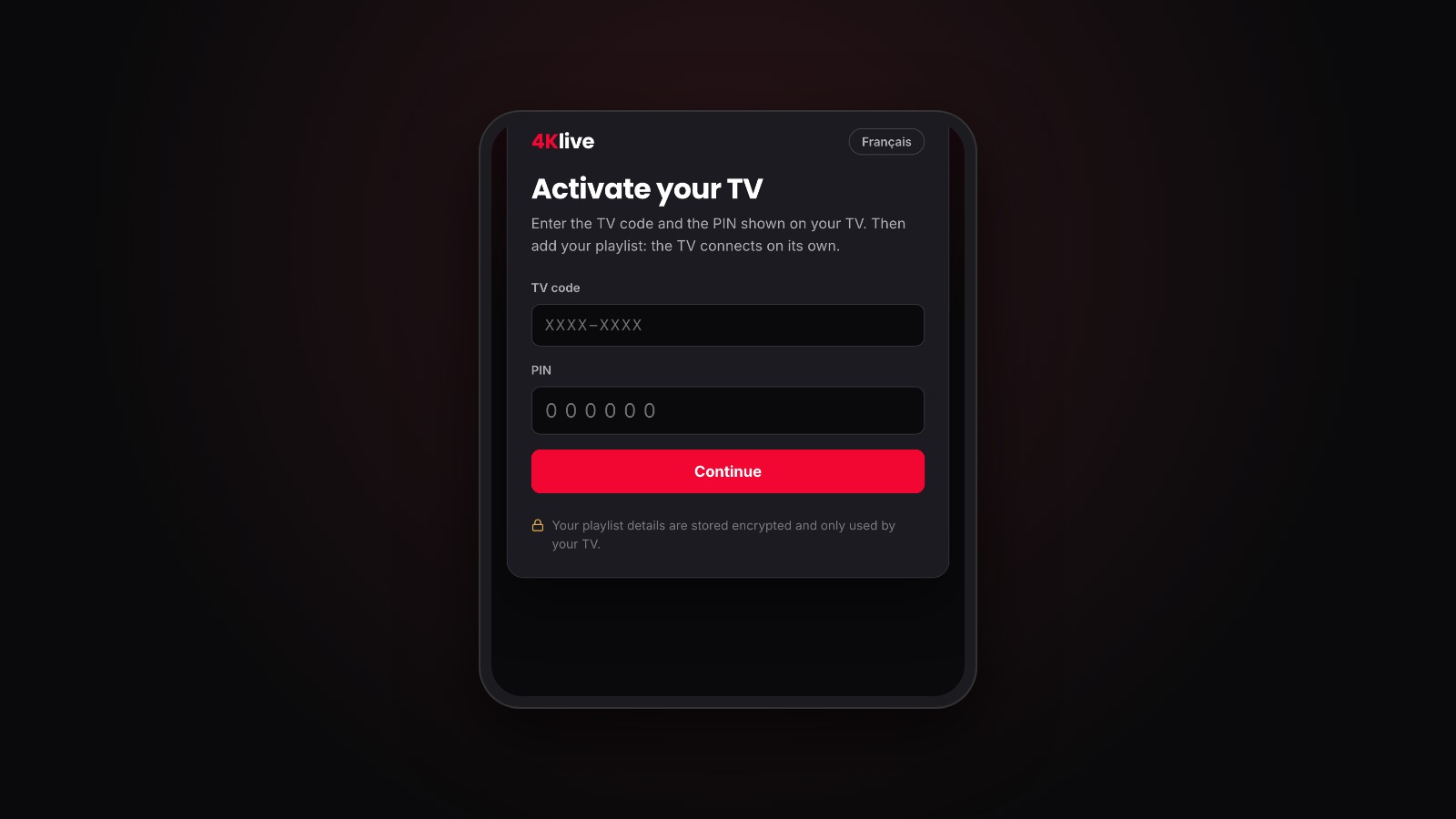
You can add up to 20 playlists to the same TV, for example one per provider or per family member. Switch between them on the TV under Settings > Playlists.
Option 2: with the remote
On the activation screen, select Manual entry. Fill in Host, Port, Username and Password, choose HTTP or HTTPS, then select Connect.
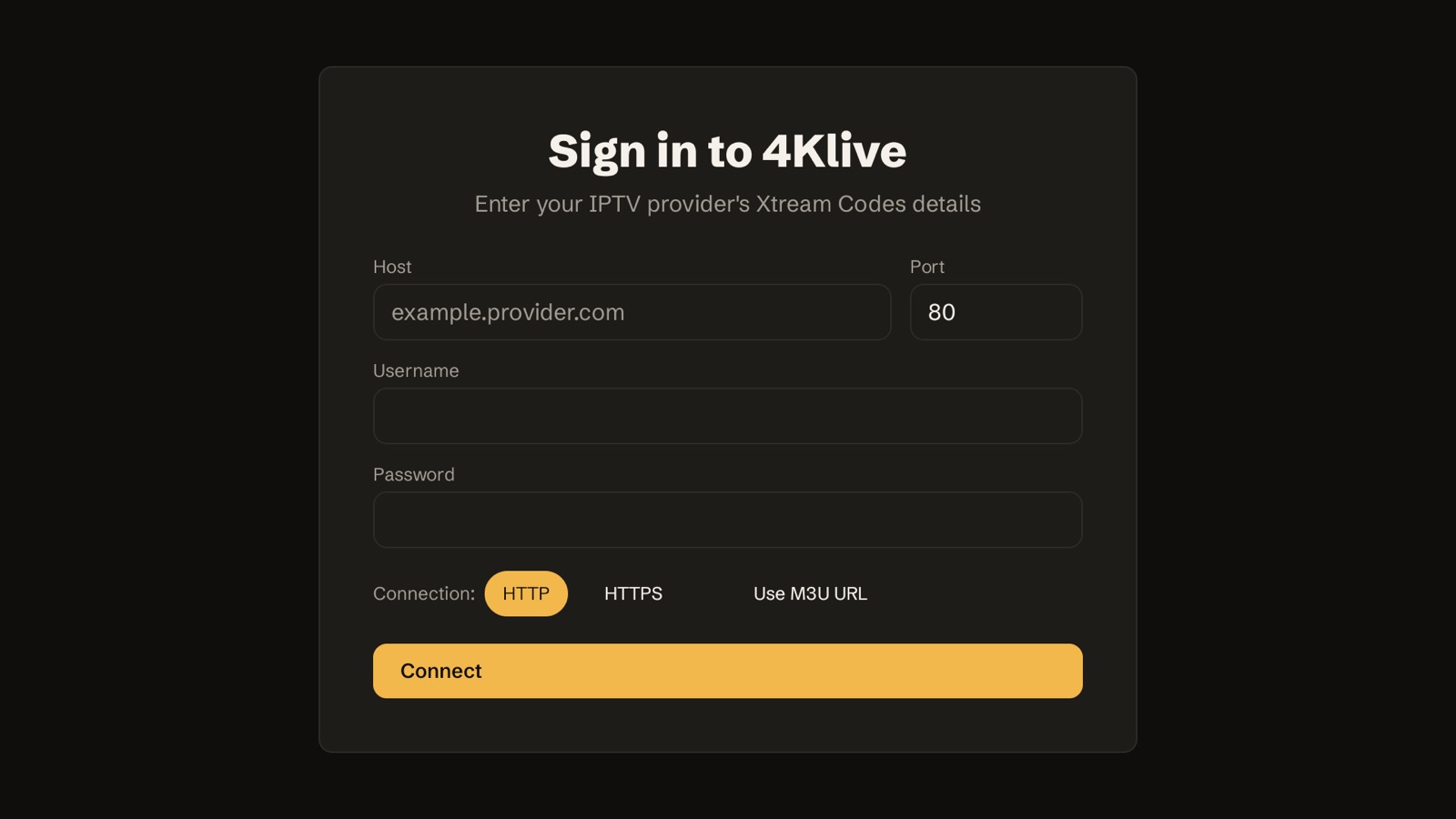
The Use M3U URL option on this screen is for M3U links generated by an Xtream server. Standalone M3U files aren't supported yet.
Two settings worth knowing
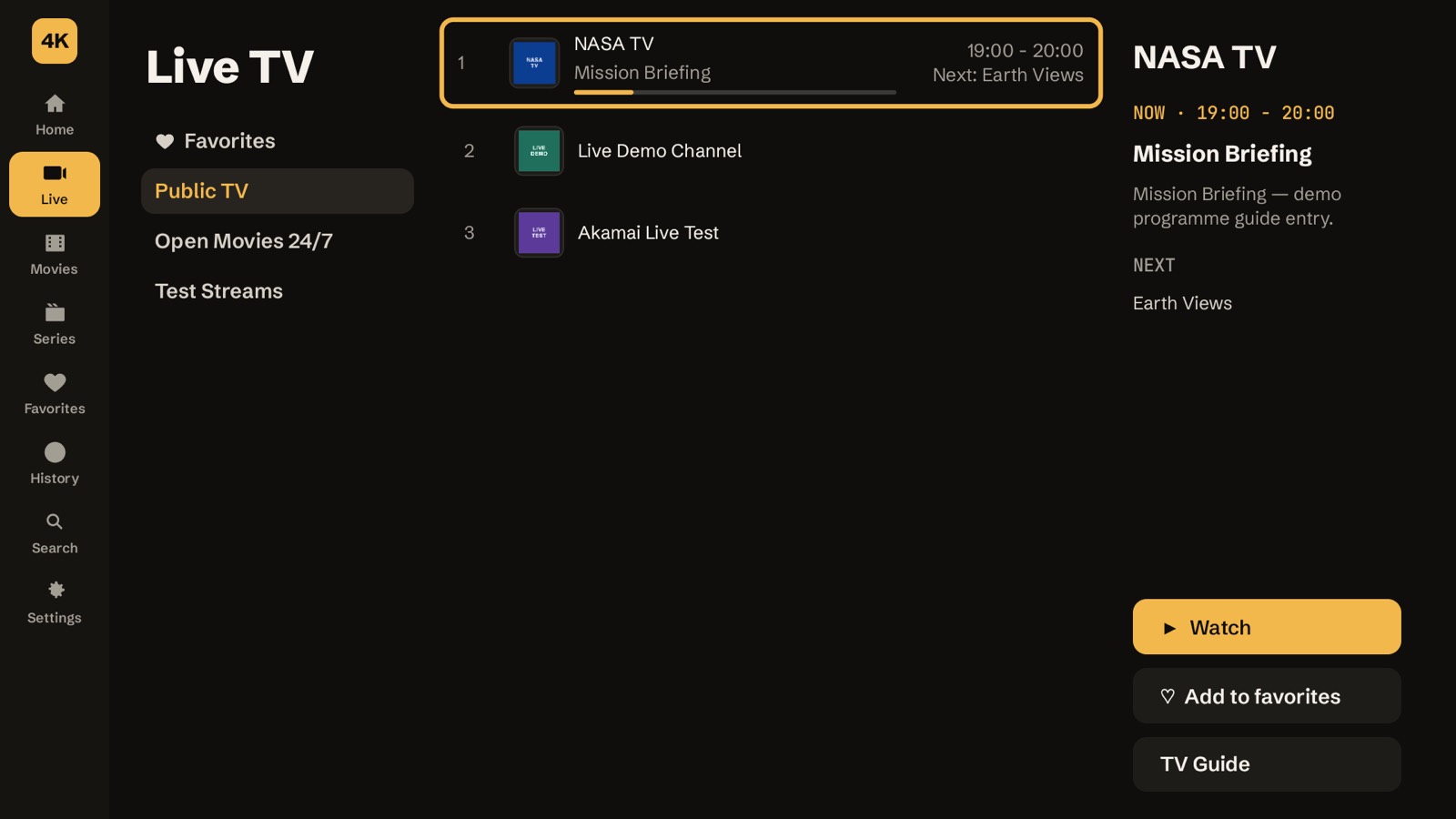
Once your playlist is loaded, open Settings in 4Klive:
- Live stream format. HLS (.m3u8) is more resilient. MPEG-TS (.ts) can switch channels faster with some providers. If a channel stutters, try the other one.
- Buffer size. A larger buffer reduces stalls on weak connections, but channels take a little longer to start. Leave it on Auto unless you have problems.
Error messages and how to fix them
"Credentials rejected by the IPTV server"
The TV received your playlist, but the server refused the login. On rabbitaitv.com/activate, check the host, port, username and password: they are case-sensitive and must not contain spaces. Also check HTTP vs HTTPS.
"Sign-in failed: invalid username or password"
Same cause: the username or password is wrong. Copy them again from your provider's email rather than retyping them.
"Subscription expired"
The player works, but your provider account has ended. Contact your provider to renew it.
"Account unavailable"
Your provider has disabled the account. Only the provider can reactivate it.
"Too many connections"
Your account allows a limited number of simultaneous streams, and another device is already watching. Stop the stream on the other device, then try again.
"No connection" or "Server unreachable"
Either your internet connection or your provider's server is down. Test another app on the TV. If everything else works, wait a few minutes, then contact your provider.
Keep your login safe
- Don't share your Xtream details or M3U link publicly. Anyone who has them can use your connections.
- In 4Klive, playlist details are stored encrypted and only used by your TV. Adding or editing a playlist requires the TV's PIN.
- If you think someone has your TV's PIN, change it under Settings > Playlists > Change TV PIN.
Frequently Asked Questions
Is Xtream Codes better than M3U?
For watching on a TV, yes. You get an automatic TV guide, organized movies and series, catch-up and clear error messages. M3U is mainly useful with players that don't support Xtream Codes.
Can I use a standalone M3U file with 4Klive?
Not yet. 4Klive accepts Xtream Codes details and M3U links generated by an Xtream server (with get.php?username= in them). For a plain M3U file, use a player that accepts M3U, such as IPTV Smarters Pro, UHF or TiviMate.
Where do I find my Xtream Codes details?
In the welcome email or customer area of your provider. If you only received an M3U link, extract the four values as shown above.
Why is the TV guide empty for some channels?
The guide comes from your provider. If a channel has no guide data on their side, no player can show it. With Xtream Codes, the guide loads automatically for every channel that has one.
Is Xtream Codes legal?
Xtream Codes is a technical login format, and using it is perfectly legal. What matters is the content: only use providers that have the rights to the channels they distribute.
Which IPTV players support Xtream Codes?
Almost all of them, including 4Klive, TiviMate, OTT Navigator, IPTV Smarters Pro, UHF and IPTVX. See our comparison of the best IPTV apps.