The following guide will show you how to install the TiviMate IPTV 8K Player application for free on Firestick, Fire TV, Android TV, and Google TV devices.
We provide a screenshot guide along with setup instructions and tips to help you get the most out of it on your preferred device.
The application alone does not contain live channels for streaming. However, users can request a free 24-hour trial from RabbitAI TV via WhatsApp by clicking here.
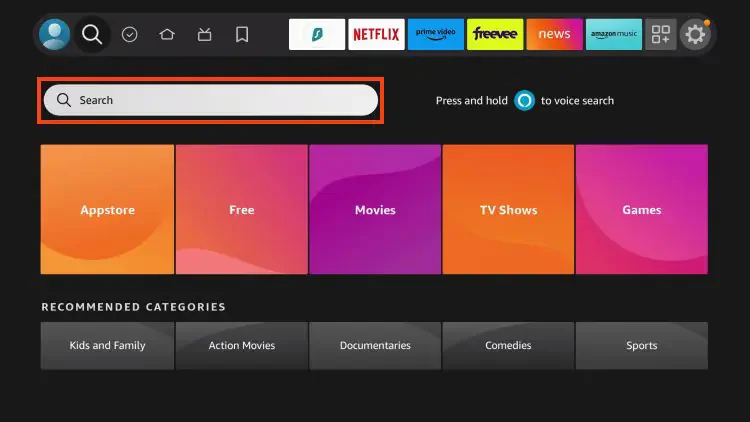
Step 1 - Prepare Your Streaming Device
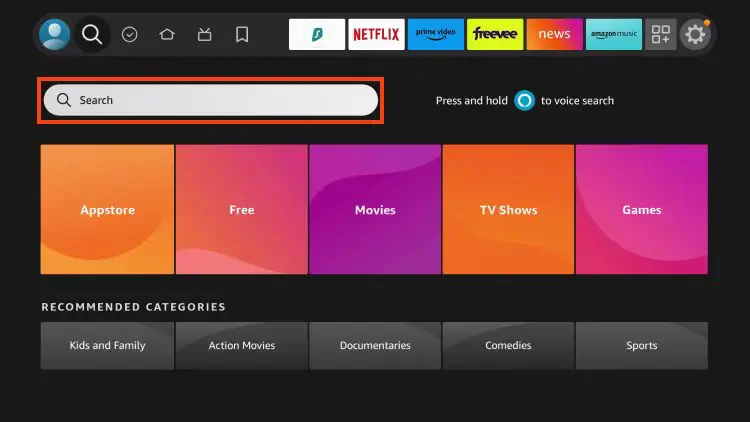
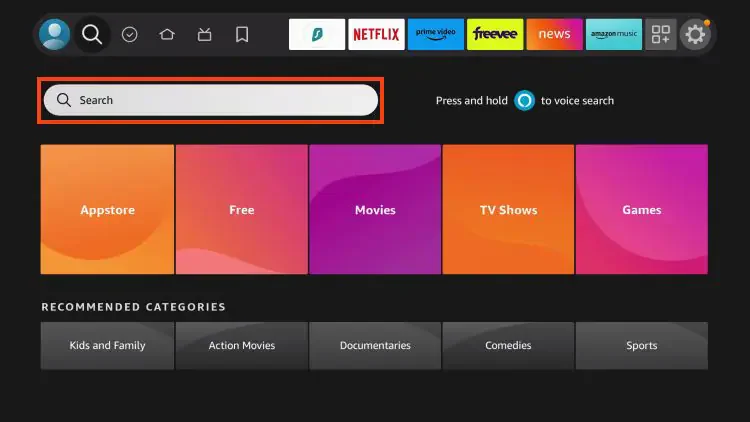
1. From your device's home screen, hover over the Search button, then click on the Search box.
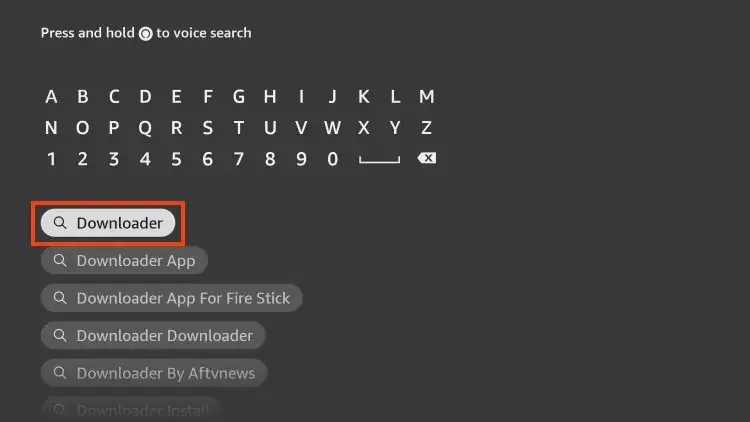
2. Search for and select Downloader.
3. Choose the Downloader application.
4. Click Download or Get if the application is not yet downloaded. If you have already installed the Downloader application, skip directly to Step 2.
5. Wait for the application to be installed.
6. You will receive the message "Downloader Ready to launch!"
Step 2 - Allow Downloader to Install TiviMate IPTV 8K Player Application
1. Return to the home screen, hover over Settings, and click on My Fire TV.
2. Choose Developer Options.
IMPORTANT: Please see the notes below if you do not see Developer Options on your screen.
3. Click on Install Unknown Apps.
4. Find the Downloader application and click on it.
5. This will enable unknown sources for the Downloader application and allow sideloading on your device.
If Developer Options Were Not Available in Step 2, Follow These Steps. Otherwise, Skip to Step 3
If you cannot locate Developer Options in Settings, follow the instructions below to enable the use of the Downloader application.
1. Hover over the Settings icon and click on My Fire TV.
2. Click on About.
Note: Notice that Developer Options are missing.
3. Hover over Fire TV Stick and click 7 times on the OK button of your remote to become a developer.
4. Click the Back button on your remote and you will notice that Developer Options are now displayed in My Fire TV.
5. Click on Install Unknown Apps.
6. Find the Downloader application and click on it.
7. This will enable unknown sources for the Downloader application and allow sideloading on your device.
Now that you have properly prepared your Firestick, it's time to move to the next step.
Step 3 - Download and Install TiviMate IPTV 8K Player
1. Launch the Downloader application from your Fire Stick's home screen.
2. Click Allow when the popup appears.
3. Click on the URL box.
Note: If you don't see the screen below, click on the Home tab in the lower left corner.
4. Enter the following URL address exactly as shown, then click GO:
https://tivimate.com/download
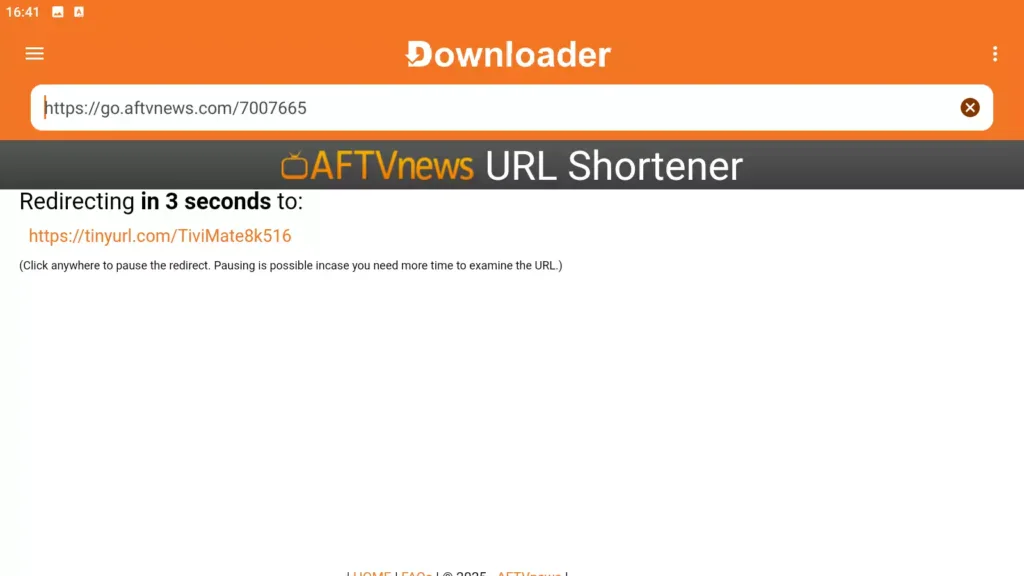
5. Wait for the APK file to download to your device.
6. Once the download is complete, click Install.
7. Wait for the installation to complete.
8. Click Done. Do not click on Open.
9. Choose Delete to erase the APK file and free up space.
10. Click to return to the Downloader main screen.
Step 4 - Configure TiviMate IPTV 8K Player
1. To open TiviMate, hover over the Search icon in your main menu and search for TiviMate.
2. Click on the application icon to launch the application.
3. Select Continue.
4. Select Add Playlist.
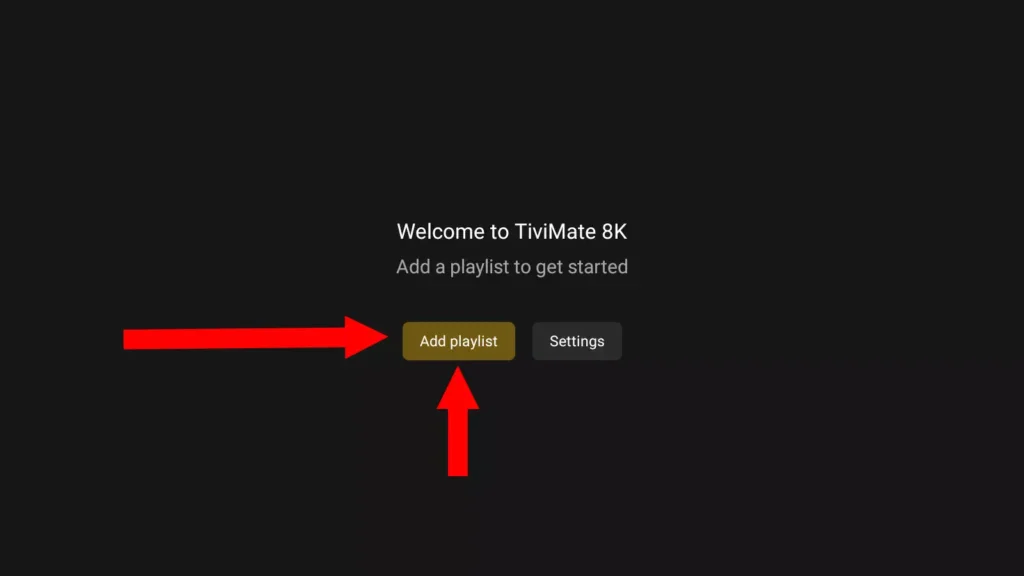
5. Select Xtream Codes login.
6. Now, enter your credentials provided by your IPTV provider (or use your RabbitAI TV free trial).
- In the Title bar, enter your preferred name to identify your playlist (e.g., RabbitAI TV)
- Name/Username: Your username
- Password: Your password
- URL or Address: Your server URL
7. Click Next in the lower right corner of the screen to continue.
8. Select your preferred channel group from the list of groups.
9. Voila! Enjoy your IPTV subscription with RabbitAI TV!
Why Choose RabbitAI TV?
RabbitAI TV offers the most stable and reliable IPTV service with:
- 20,000+ live channels in 4K, 8K, and HD quality
- 120,000+ movies and series on demand
- Compatible with all devices (Firestick, Android TV, Google TV, Smart TV, iOS, Android)
- Anti-freeze technology for buffer-free streaming
- 24/7 customer support
- Free 24-hour trial available
Contact us on WhatsApp today to get your free trial or subscription and enjoy the best IPTV experience!
Frequently Asked Questions
Is TiviMate free?
TiviMate is a free IPTV player application, but you need an IPTV subscription from a provider like RabbitAI TV to access live channels and content.
Can I use TiviMate on Android TV?
Yes, TiviMate works perfectly on Android TV, Google TV, Fire TV Stick, and Chromecast with Google TV.
Do I need a VPN with TiviMate?
While not mandatory, using a VPN is recommended for privacy and security when streaming IPTV content.
How do I get IPTV credentials for TiviMate?
You can get IPTV credentials by subscribing to RabbitAI TV. We offer a free 24-hour trial so you can test the service before committing to a subscription.